 As I sit here in July of 2021, the latest cheese grater Mac Pro (released on December 10th, 2019) has been out for just over 18 months, since then I’m sure you’ve seen, read, or heard everything possible about the Mac Pro wheels. From the fact that they don’t lock, to the fact that Apple charges seven hundred freaking dollars for them, they quickly became the latest Apple product on which the Apple haters could focus their rage. In an odd twist, though, this time even the Apple fans like me thought they were stupid. There was just one problem: I have one of the new Mac Pros, and the simple truth is that I really needed the wheels.
Category: Technology

Guild AntiHum Mini-Humbucker Teardown
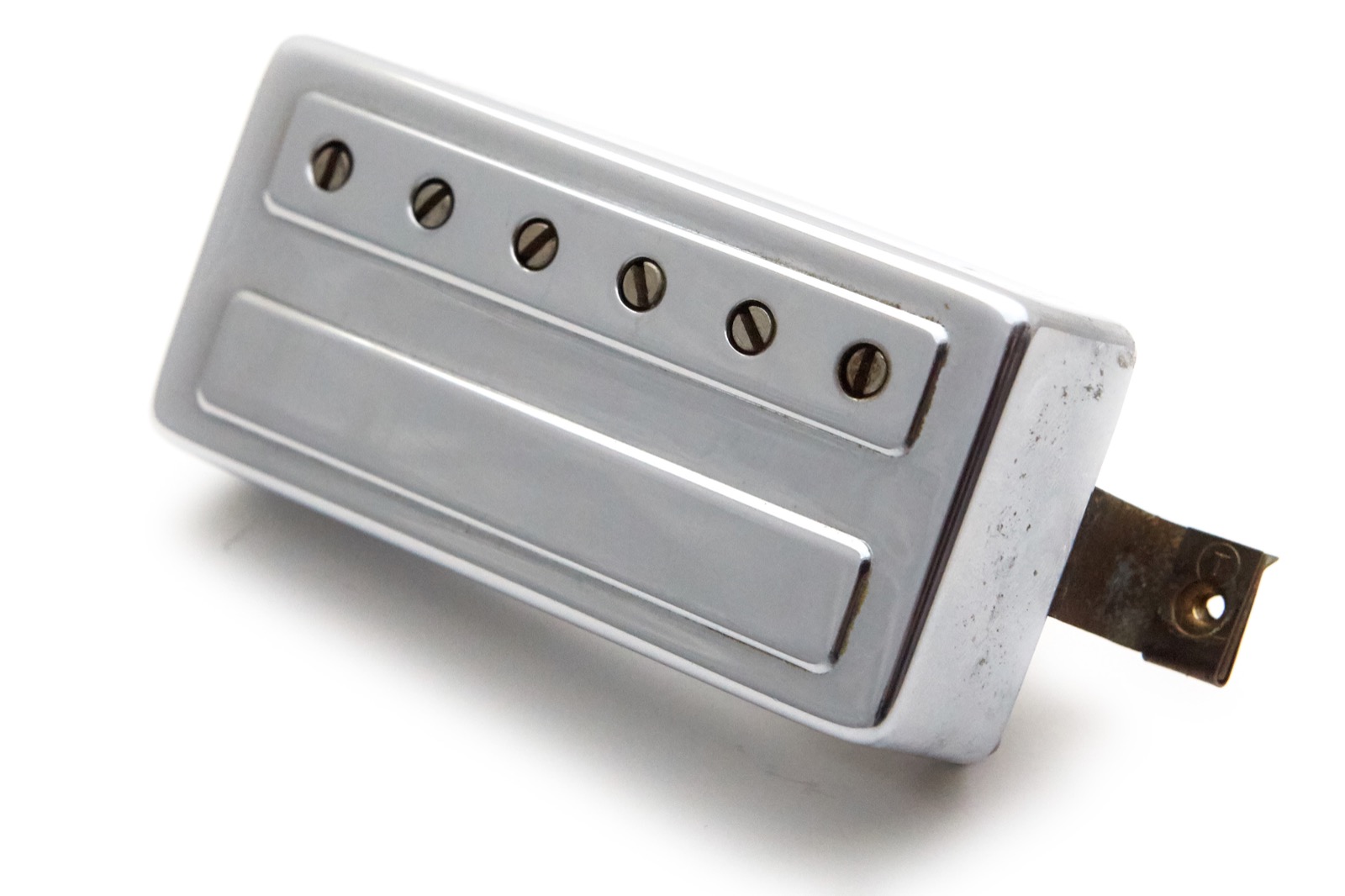 Today’s mad science experiment involves me tearing apart a vintage Guild AntiHum pickup from the mid-1960s. This rare item is pretty valuable, so if you’re sensitive about gore, best to look away.
You and I both know that you’re not going to look away.
Like with the vintage Guild HB1 I dismantled, I tore this pickup apart in the name of science. Well, that and pure raw curiosity; I like to see how things work. So, without further ado, let’s dig in and tear this puppy open! Read More
GAD’s Guitar Review Standards
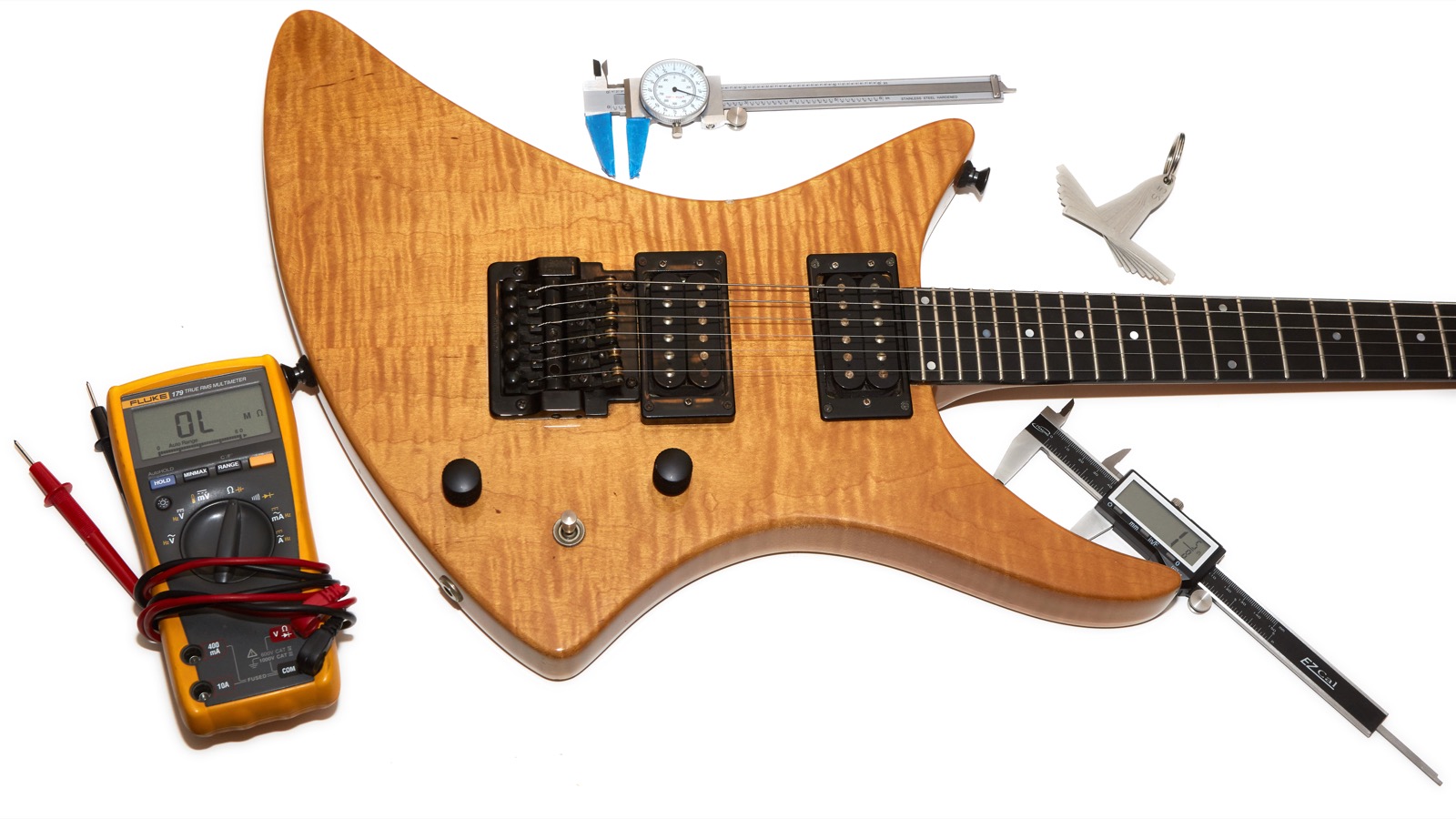 Having written a fair number of guitar reviews, I figured I would document my steps in case anyone out there was curious. Additionally, I figured having a fair bit of transparency into the process would somehow had credibility to the entire affair. Really, though, I felt like writing this so I did. The end. Well, not really. I discovered that I was writing things like “The Beesly Book” and figured that I should specify what stuff like that means instead of writing an explanation in each review.
If you’re at all interested, here’s what its like for me to write a guitar review.
How I Took my Solar Eclipse Photos
 As pretty much everyone in the world is no doubt aware by now, there was a total solar eclipse over the continental US on August 21st, 2017. I endeavored to not only see the eclipse from the path of totality, but also to take pictures. Naturally, since I was involved, it was never that simple.
The pic you see was taken by me on August 21st, 2017 in the parking lot of the Greenville Marriott in South Carolina. This article will show you more pics and explain what I went through to get them because that photo did not happen by chance. I spent weeks preparing. Here’s how. Read More
Guild HB-1 Pickup Teardown
 Today I tear apart a vintage Guild HB-1 pickup. Why would I do such a thing to one of my favorite pickups? For the same reason that I used to take the phones apart when I was a kid in the ’70s: to see how it works.
Don’t worry, this pic of a pure unmolested ’70s Guild HB-1 in mint condition with its unused ring, perfect springs and screws is not the pickup I dismantled. Doing that would make me a monster. Read More
Batch Photo Resize with Mac OSX Automator
 I have a constant need to resize photos, often hundreds or even thousands at a time. Additionally, I require that when resizing, I keep the original file separate from the smaller, resized file. There are many ways to resize files on the Mac, but with the advent of file versioning, most of them convert the existing file which I didn’t want.
My requirements were simple: Resize a directory or selection of photos, all to the same size (1600 pixels on the longest side), placing the resized photos into a subdirectory called, “Web” while leaving the originals untouched. I wanted this specific set of steps because I had previously been using a wonderful Windows program called Thumbnailer that let me do just that. Thumbnailer was the only program that I still needed Windows for, and I desperately wanted to stop using Windows, so I came up with this Automator script which is much simpler to use. Here’s how you can make one just like it. Read More
Cozy Tales: 29. Newf Net
 When we first decided to get a Newfoundland dog, we scoured the bookstores and quickly discovered that there were precious few quality books on the breed. The Internet was just starting to take off and the dot com boom was in full swing so we focused our energies trying to find quality information on-line. Our Internet searches uncovered an email list called Newf-L which was short for the Newfoundland Mailing List.
An Internet mailing list allowed one person to send email to “the list” by sending to a single email address. The email address was a server which then resent the email to everyone that had subscribed to the list. Forums were still in their infancy, and blogs did not yet exist because this was the still the dark ages of the late 90’s when people used dial-up modems. Back then, email lists were still a pretty common means of information sharing for on-line communities. Read More
Cozy Tales: 25. Remote Control
 Back before the days of wedded bliss, having dogs, or even the existence of DVD players, I had come into some money and bought a very nice 27” JVC TV and a matching VCR. Each of these items had cost me over $800 and at the time were about the most expensive things I had ever bought. By the time we had Cozy and Daisy living with us, these devices were each probably eight years old, but since High Definition television was still many years away, they were both still used daily. Used, I might add, with a certain amount of nerdy pride since they were still pretty great devices.
The VCR was a top of the line model (circa 1989) that had a wonderful remote control including a large LCD screen that kept the time so you could program the VCR when the power failed. The remote had two levels of buttons with a very cool plastic door that would open to reveal an additional level of controls. It was a masterful piece of geek technology that I really enjoyed using. It was a remote among remotes. It was sublime. Read More
Diamond X50 Antenna Camouflage
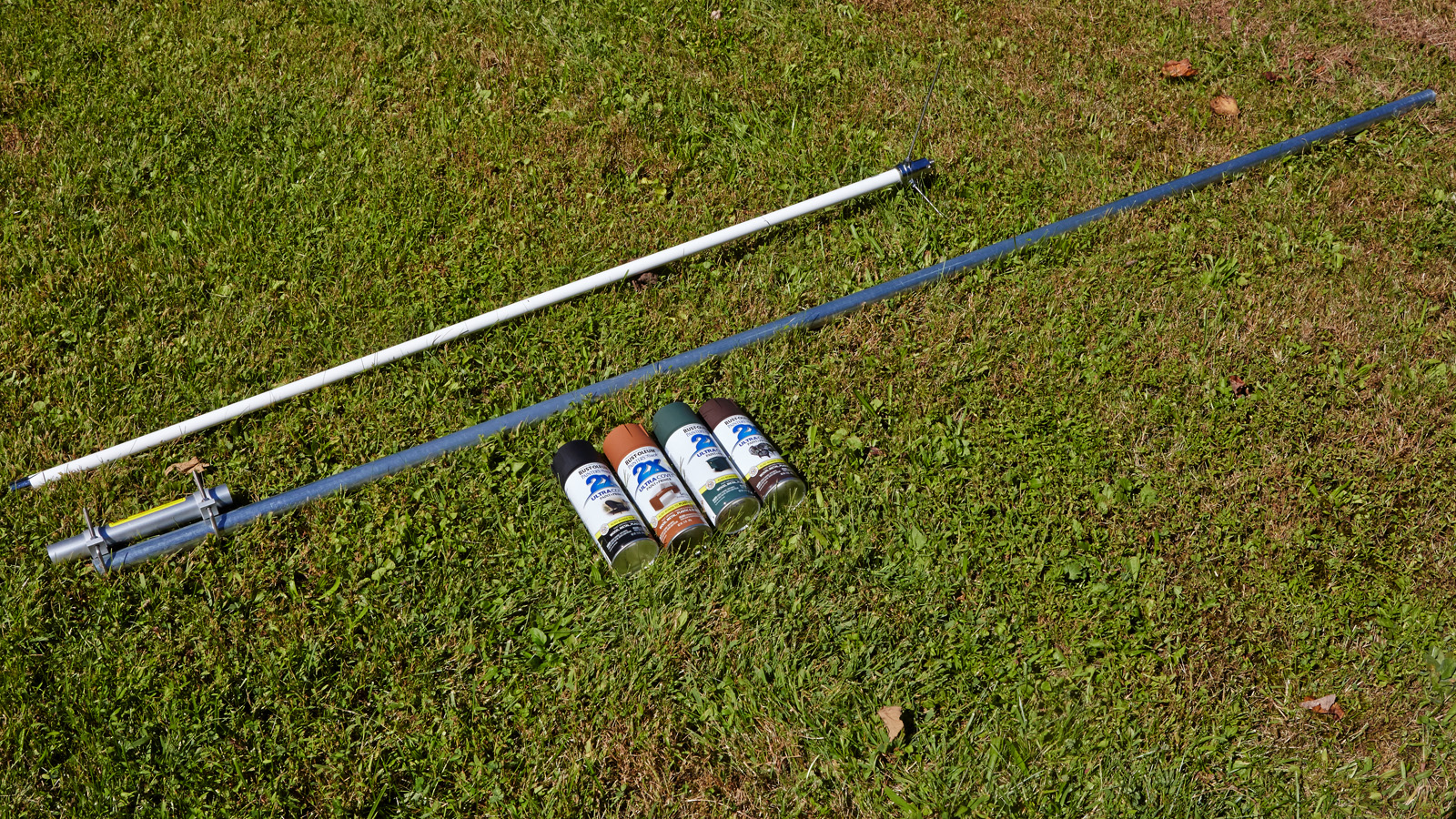 After many years of my wife resisting the addition of a ham radio antenna on the side of our house (I have a nice 7-band off-center fed dipole in the woods), she finally relented. Since I didn’t want to disturb the thin veneer of domestic tranquility by installing a garish monstrosity, I decided to alter my bright white Diamond X50 antenna with the most upscale dressing such that any style-consious wife would be sure to adore: leaf-pattern camouflage! Read More
The Yellow Box of Power
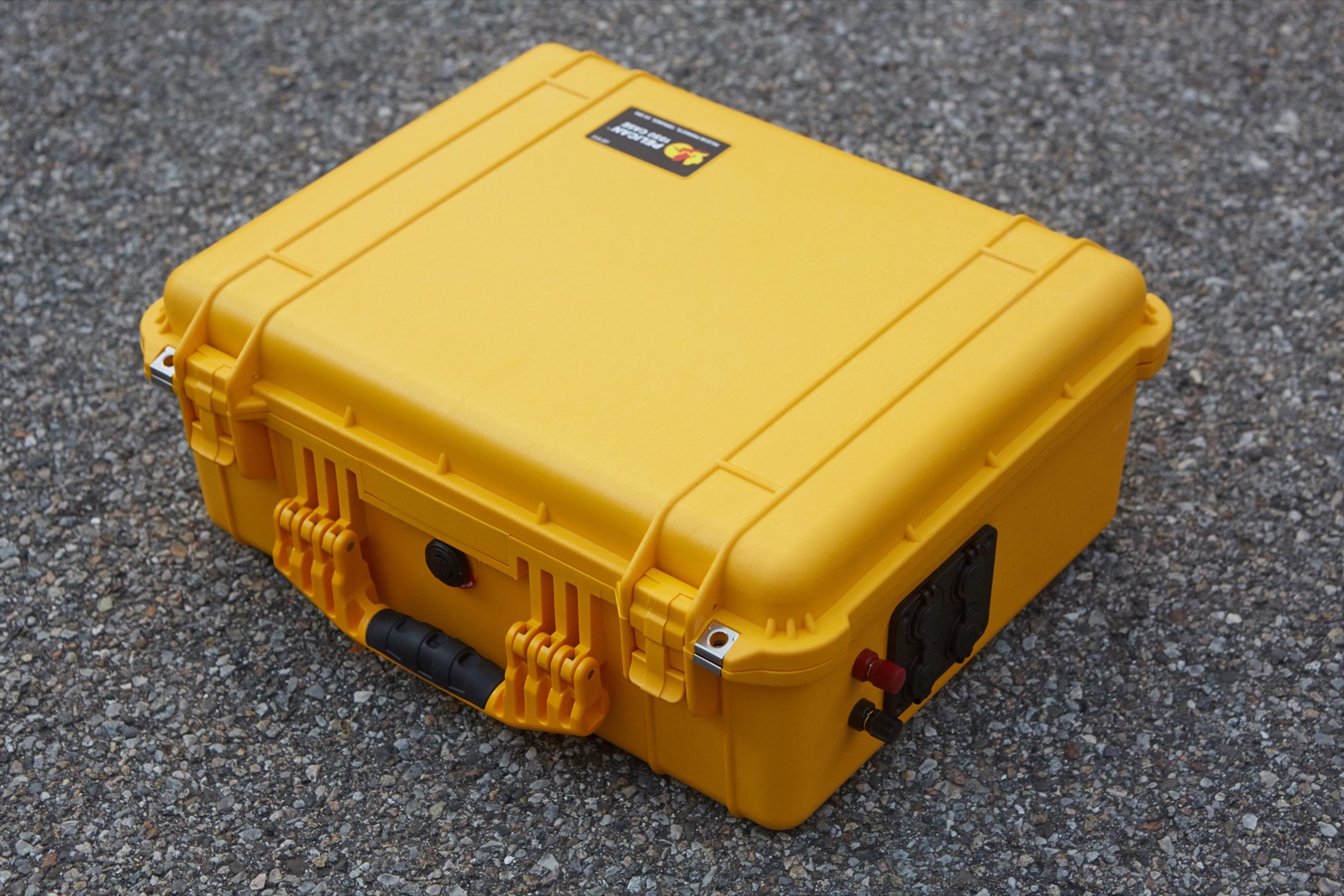 After Hurricane Sandy, I became slightly obsessed with alternative power, but focused most of my energy on generators, always remembering that I can only store so much gas. The natural alternative to engines and gasoline is solar power, but I wasn’t sure I was looking for a whole-house solution since we don’t have room for batteries and I’m not a fan of selling my surplus energy back to the power company. An idea for a portable solar solution rattled around in my head for years, and while studying for my Amateur Radio Extra Class license exam (K2GAD/AE!), plans started to germinate that resulted in what you see here. I present to you the Internet unveiling of The Yellow Box of Power.
The Yellow Box of Power is a very yellow Pelican box (size 1550) loaded up with 36 amp-hours of 12-volt battery capacity that can be charged by way of normal 120V household power or through one or more solar panels. It is mostly self-contained, is completely portable, will charge laptops and phones, run a ham radio station, or just light up a room. It will even float! Actually, it won’t float for long since I cut a bunch of holes in the side, but it’s pretty darn water resistant. Read on to learn how I made it after a quick rant about the term solar generator. Read More